
 Documentation
Copy this article in AI-ready Markdown for ChatGPT, Claude, Gemini, and more.
WPFAQBlock makes it easy to create and display FAQs anywhere on your WordPress website using a Gutenberg block or shortcode. This guide will walk you through creating your first FAQ category, adding FAQs, and displaying them on a page.
Pre-Installation Checklist:
FAQ categories help organize your questions into groups such as Support, Pricing, Shipping, or Product FAQs.
Your category is now ready to store FAQs.
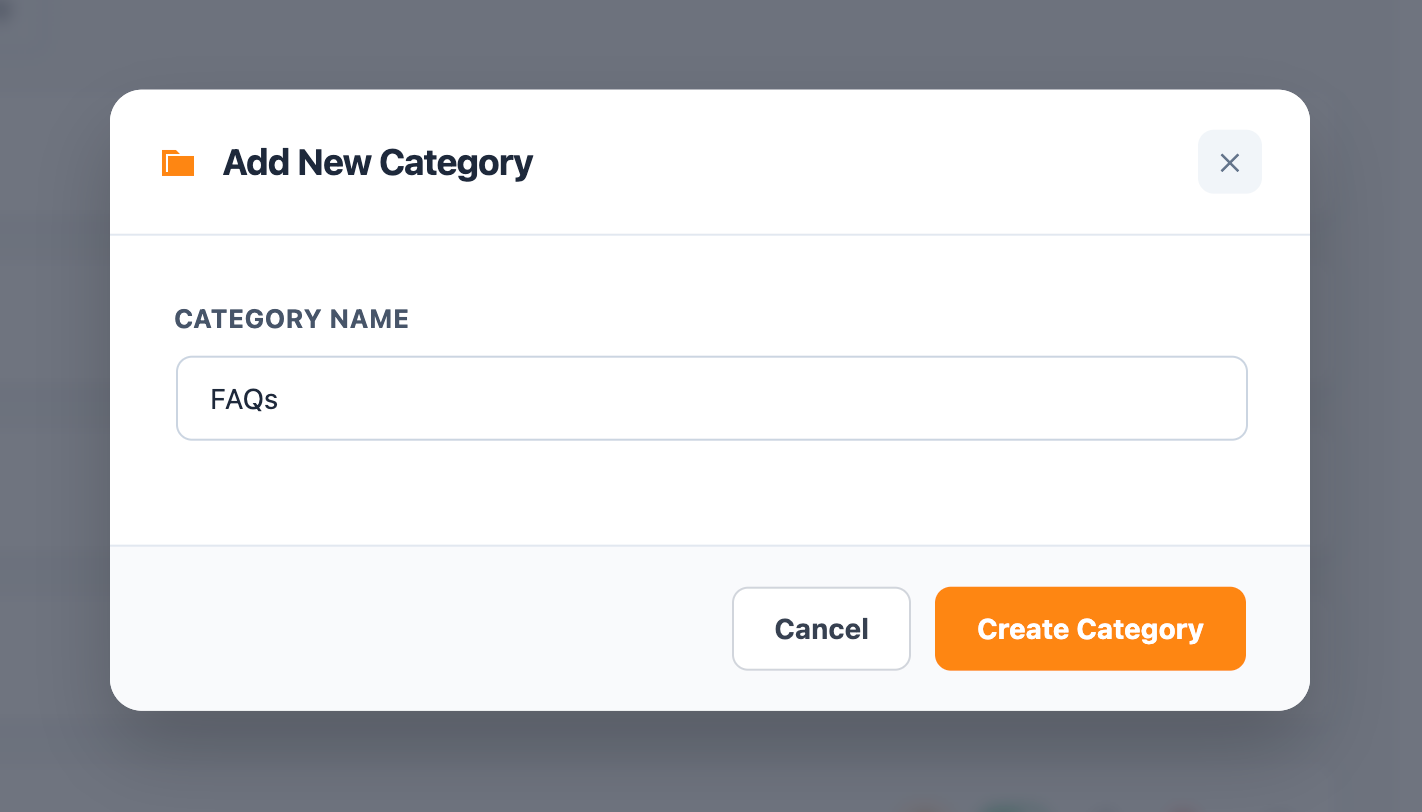
Once your category has been created, you can start adding questions and answers.
Repeat the process for each FAQ you want to add.
How do I install WPFAQBlock?
Instead of creating and updating FAQs manually, you can use the built-in AI Assistant to scrape content, read local database pages, toggle FAQ statuses, and optimize content using direct commands.
Paste any URL and ask the chatbot to create FAQs based on its contents.
create category and add faqs related to: [https://wordpress.org/about/requirements/](https://wordpress.org/about/requirements/)yes.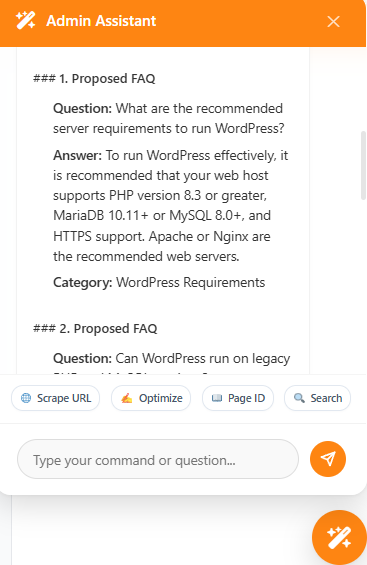
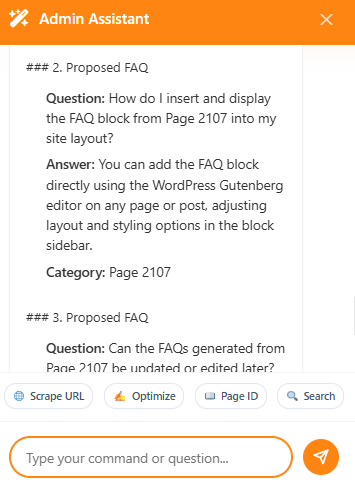
Extract FAQs directly from pages or posts already stored in your WordPress database.
read page 12 and generate FAQs (Replace 12 with your WordPress Page or Post ID).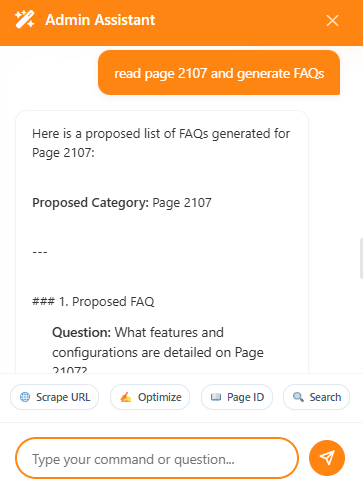
Perform instant operations directly in chat:
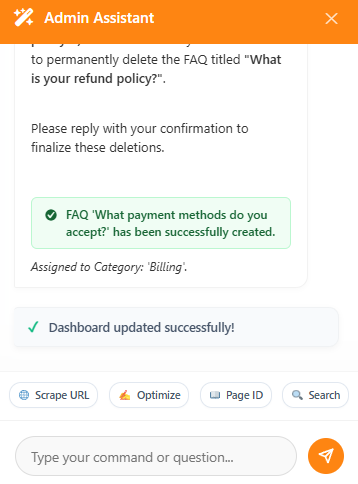
add a FAQ under Billing. Question: What payment methods do you accept?, Answer: We accept Credit Cards and PayPal.delete category Test Category (AI will ask for confirmation if FAQs exist inside the category)delete FAQ What is your refund policy? (AI will locate the FAQ and delete it safely)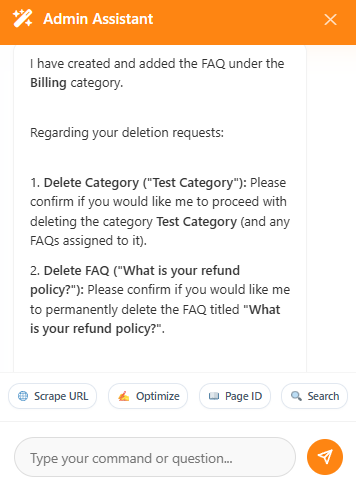
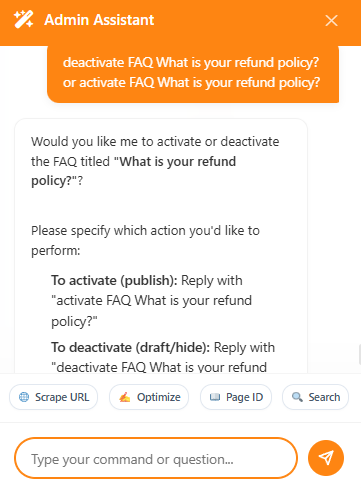
Activate or deactivate entire categories or specific FAQs through simple commands:
disable category Event Planning or enable category Event Planningdeactivate FAQ What is your refund policy? or activate FAQ What is your refund policy?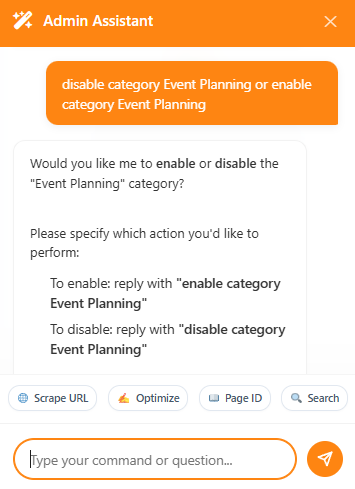
Rewrite or optimize any existing FAQ’s question or answer for tone, tone of voice, or target keywords:
make this FAQ professional: What payment options do you accept?optimize this FAQ for SEO: How to book?yes / approve).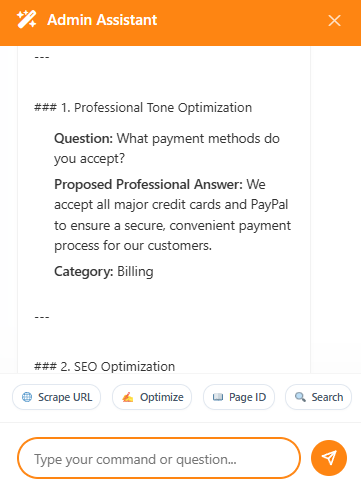
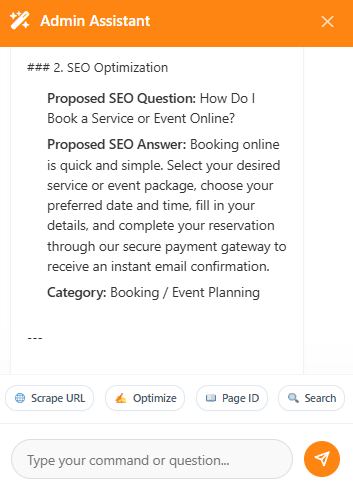
Retrieve exact support answers directly from your active FAQ base:
What is the refund policy?Do we offer corporate planning services?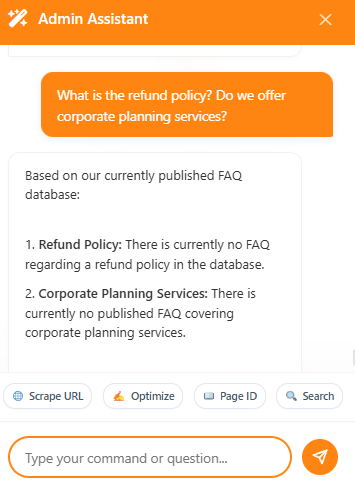
WPFAQBlock includes a Gutenberg block that allows you to display FAQs anywhere on your website.
The FAQ block will now appear inside the editor.
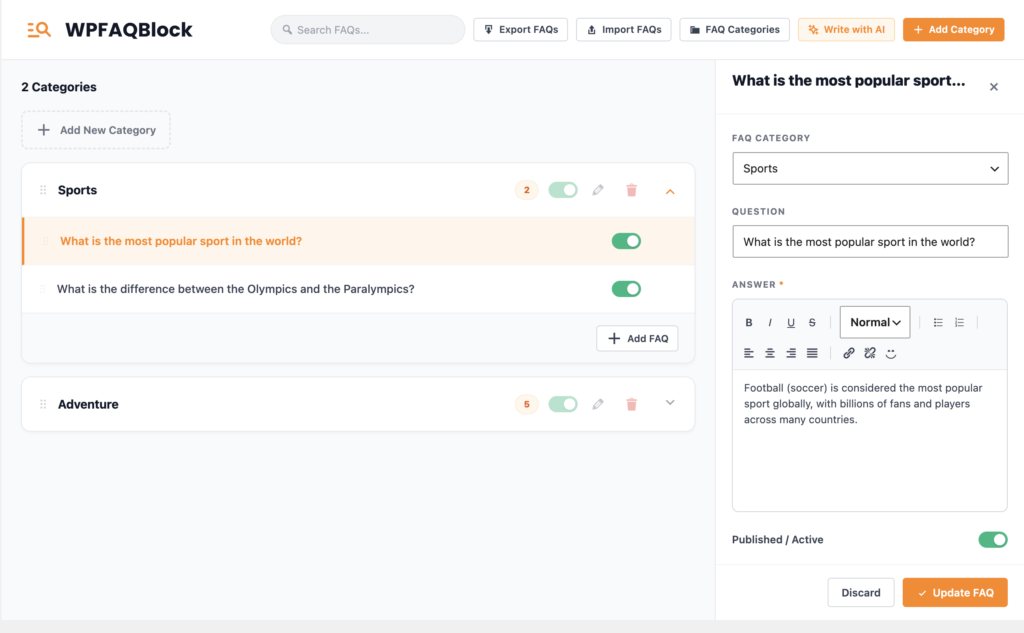
Open the General and Design tabs to customize the FAQ section. Available options include:
Changes are shown directly in the editor preview.
Once you have finished setting up your FAQ section:
Your FAQ section is now live and ready to help your audience find answers quickly.
You can also add FAQs anywhere on your website using a shortcode.
[wpfaqblock]
[wpfaqblock category="support"]
[wpfaqblock ids="12,34,56"]
Simply copy and paste the shortcode into any page, post, sidebar widget, or other area that supports shortcodes.
FAQ Schema helps search engines better understand your FAQ content, which may improve how your FAQs appear in search results.
To enable FAQ Schema:
WPFAQBlock will automatically add schema markup to FAQs displayed on your website.
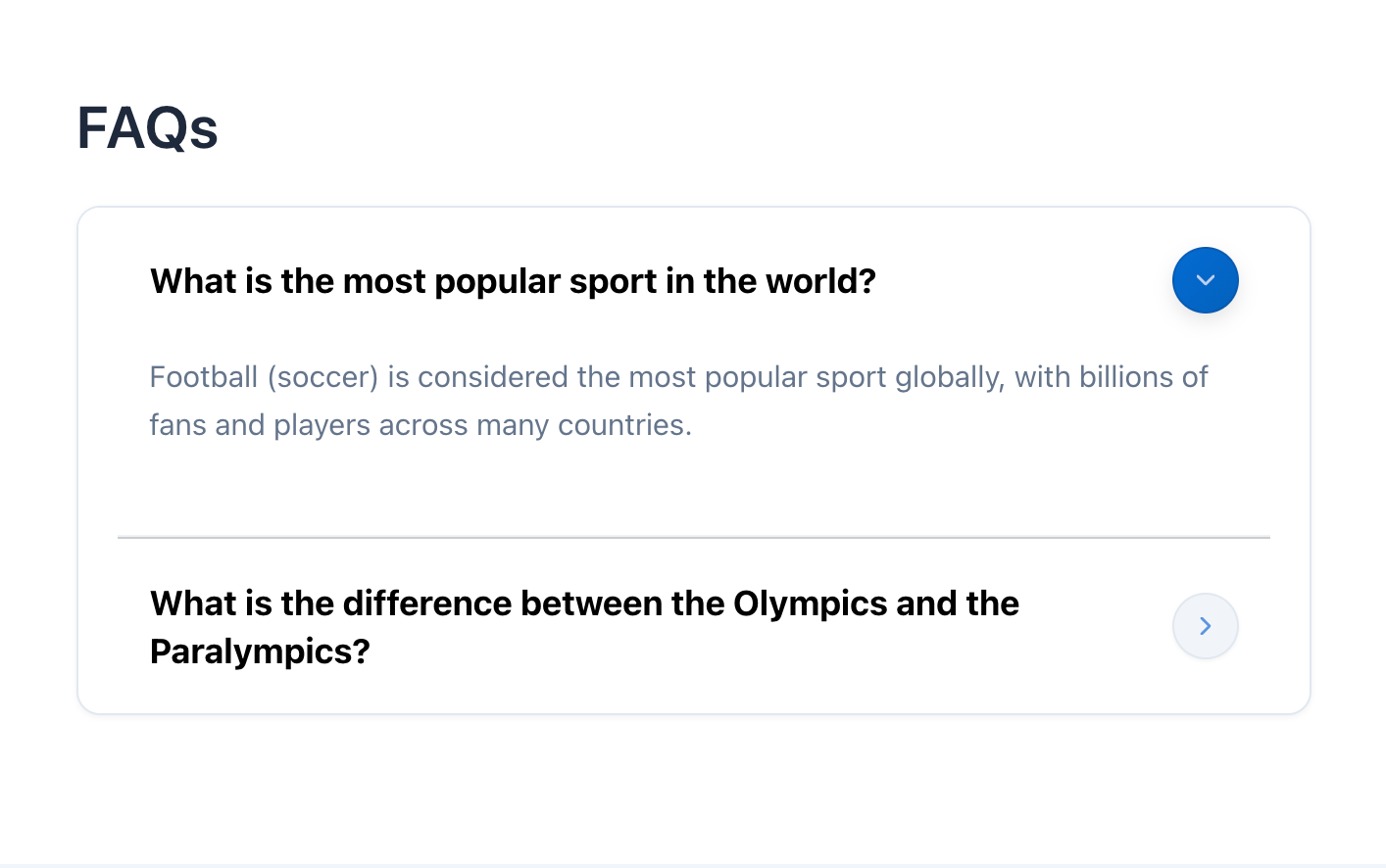
Now that your FAQ section is live, you can:
Explore these features to create a better experience for your visitors.
You are protected by our no questions asked refund policy.

