

WPFAQBlock makes it easy to create and display beautiful FAQ sections on your website using the WordPress block editor.
In this guide, you’ll learn how to:
Log in to your WordPress dashboard.
From the left-hand menu, navigate to:
Plugins → Add New Plugin
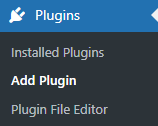
Click the Upload Plugin button.
Upload the WPFAQBlock ZIP file using the upload field.
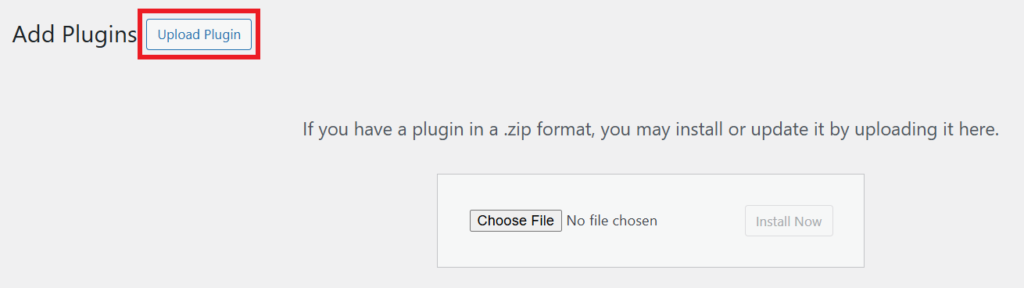
Click Install Now
Once installation is complete, click:
Activate
Activating the plugin enables all WPFAQBlock features and adds the plugin menu to your dashboard.

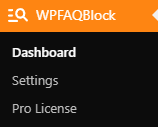
From the left-hand menu, click:
WPFAQBlock
This opens the plugin dashboard where you can manage your FAQs.
Here you can:
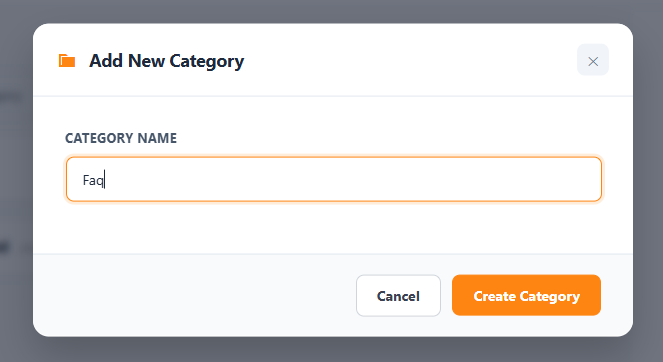
Click: + Add Category
Enter a category name.
Example:
General FAQ
Categories help organize related questions for better management.
Select your category and click: + Add FAQ
Enter your question and answer.
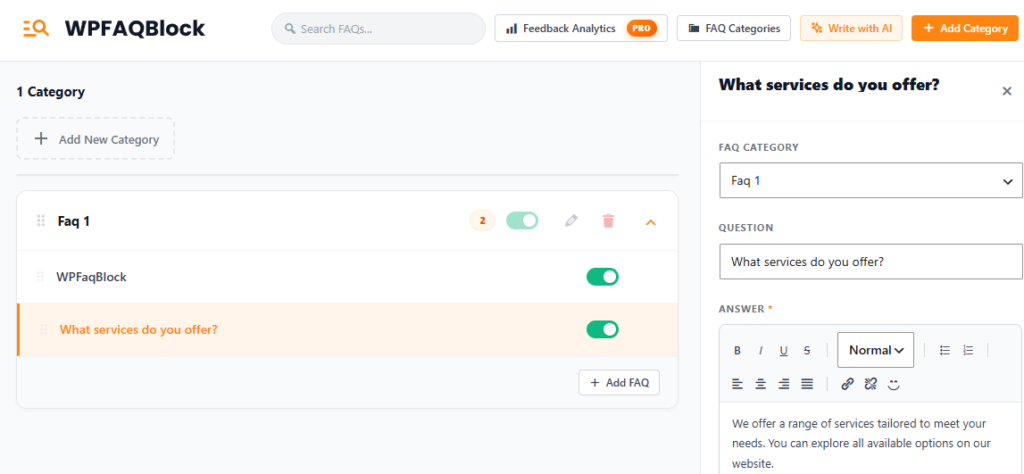
Each FAQ includes a visibility toggle.
Turn the toggle ON to display that FAQ on your website.
Disabled FAQs will remain hidden.
Navigate to: Pages → Add New
Enter a page title.
Example:
Frequently Asked Questions
Inside the WordPress block editor: Click + Add Block
Search for: WPFAQBlock
Select the block to insert it into your page.
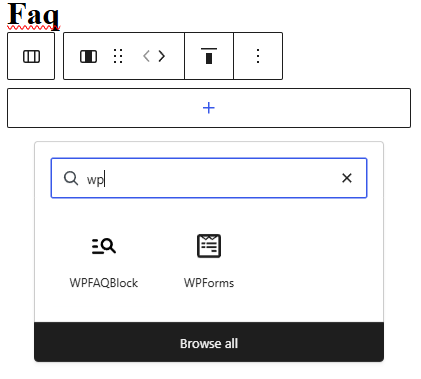
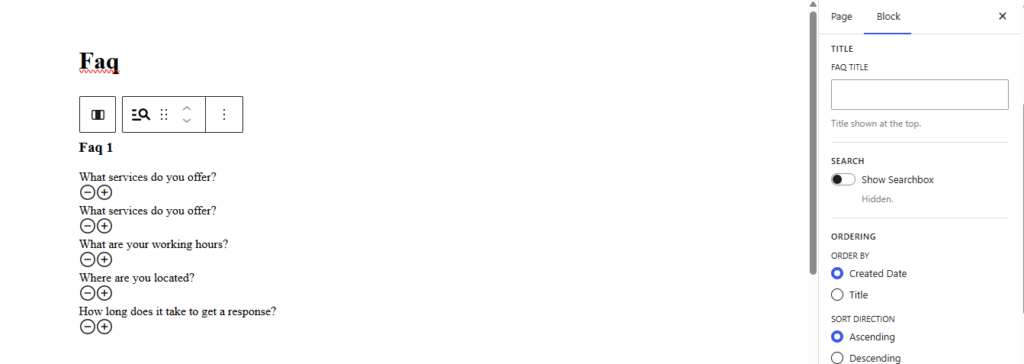
After inserting the block, choose the category you created earlier.
This tells the block which FAQ items to display on the page.
Use the settings panel on the right-hand side to customize the FAQ section.
You can configure:
These options help match the FAQ section to your website design.
Click: Preview
Check that:
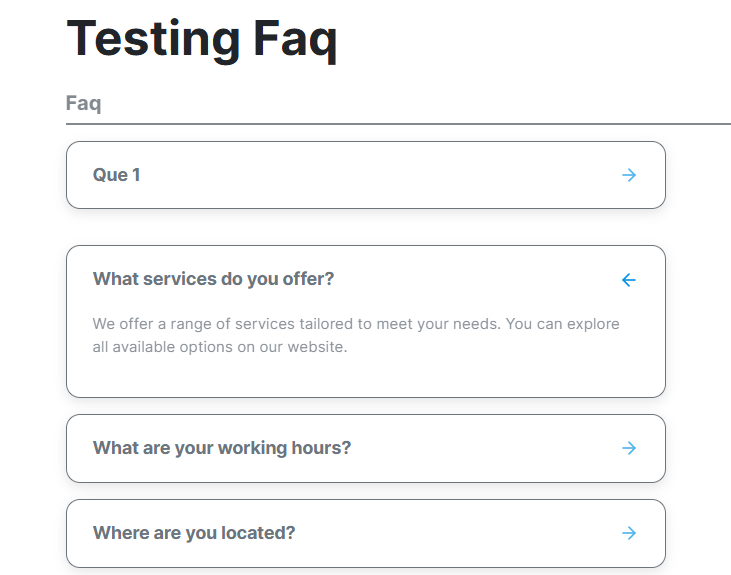
Once everything looks perfect, click: Publish
Your FAQ section is now live on your website.
You are protected by our no questions asked refund policy.

